
Every year, I’m invited by Professor Rogério Diogines to teach about Git to the Telematics class at the Federal Institute of Education, Science and Technology of Ceará, and this post aims to summarize what I present to the students.
Here, we will cover the main characteristics, concepts, and commands of Git that every beginner in the vast world of software development needs to know. Shall we?
Definition
Git is nothing more than a Distributed Version Control System, created by the software engineer who developed the kernel (the core of the operating system) of Linux, the great Linus Torvalds.

But what exactly is a Distributed Version Control System? To better understand, let’s break the definition into two parts:
-
Version Control System: A system designed to record any changes made to code, making it easier to share with the development team. It stores this code and its change history, allowing you to revert to previous versions of the application quickly and easily when needed.
-
Distributed: Instead of having a single location containing the complete version history, Git enables every developer’s working copy to also serve as a repository that contains the entire history with all changes.
Simply put, a distributed system is a set of independent computers working together to execute tasks in a coordinated manner, as if they were a single system.
Key Terms
Git has various terms and concepts for different workflows or actions commonly performed by developers. Here, I’ll list the most important ones, which are, without a doubt, essential for beginners.
-
Branch: A branch represents a version of the project. This is useful as it allows managing multiple changes happening simultaneously.
Every project should have default branches like
masterormainanddevelop. The purpose of each will be presented later. Each new feature or bug fix should have its own branch derived from one of these main branches. Examples of branch names: for a feature,feat/login-screen; for a fix,fix/login-authentication.Naming conventions for branches vary by project, typically determined by an agreement among the team members.
-
Commit: A short description of what was modified. When you develop the first part of a feature, “commit.” When adding a new package to the application, “commit.” When changing configurations, “commit!”
A good practice is to commit whenever a modification is made and validated, so it’s easier to track and fix issues later.
If you notice a large number of modified files, guess what? “Commit!” This will save you headaches as the project grows.
-
Repository: Environments created to store your code. You can have one or more public repositories (anyone accessing your GitHub can view the code) or private ones, as well as local repositories (stored on your machine) or remote ones (hosted on online platforms).
Repositories can store not only the code itself but also images, audio, files, and other elements related to your project.
Items that shouldn’t be uploaded to remote repositories are declared in the
.gitignorefile. -
Merge: To combine changes made in a branch into the original code, we use the merge command. This functionality allows all changes made in manipulable copies to be incorporated into the source code once approved.
Remember when I said every new feature has its own branch? A common use case for merge is when you want to update your feature branch with changes made by other team members. For example, they commit changes to the develop branch, and you merge develop into your feature branch.
Git vs. GitHub
It’s quite common for people starting in programming to confuse Git with GitHub or think they are the same thing.

GitHub is a fully online platform where you can create repositories and host your projects, collaborate on open-source software, follow other programmers, and interact with third-party code. In other words, it also functions as a social network.
In essence, Git, as we’ve discussed, is a version control system with local branches and repositories, while GitHub is a web platform with remote branches and repositories.
Another interesting point is the ability to implement CI/CD. This is a set of software development practices aimed at automating and streamlining the code delivery process. It is divided into two parts:
-
CI (Continuous Integration): Developers frequently send (or integrate) small code changes to a central repository. Each time code is sent, automated tests run to ensure it works and doesn’t “break” the system. Problems are identified quickly.
-
CD (Continuous Delivery or Continuous Deployment): Continuous Delivery prepares the code for production automatically, ensuring it’s always ready to be released. Continuous Deployment goes further, automatically putting the code into production after passing the tests.
Essential Commands
Git has numerous commands for various situations in the software development process. Many cheat sheets (summaries/tip sheets) list Git commands with brief descriptions, like this one: GIT CHEAT SHEET.
Below, I’ve compiled the essential ones for beginners to start using Git effectively.
-
Init: Initializes a new repository or reinitializes an existing one.
git init newProject -
Clone: Clones the code from a repository to another environment for modification.
git clone https://github.com/Brenovisk/SimpleLogin.git -
Branch: Creates a new branch.
git branch feature/new-feature -
Commit: Moves files from the staging area to a local repository with a comment describing the change.
git commit -m "my commit" -
Push: Sends files from a local repository to a remote repository.
git push -
Pull: Pulls files from a remote repository to a local one, showing modifications.
git pull -
Checkout: Switches between branches.
git checkout main -
Stash: Temporarily saves modifications to allow branch switching without committing.
git stashTo retrieve them later:
git stash apply
Git Flow
Gitflow is an abstract idea of the Git workflow, dictating the types of branches to set up and when to merge them. Widely used in software companies, it may be followed strictly or with adaptations depending on the company’s processes. Below, I’ll discuss the branches involved and the workflow.
Main Branches
-
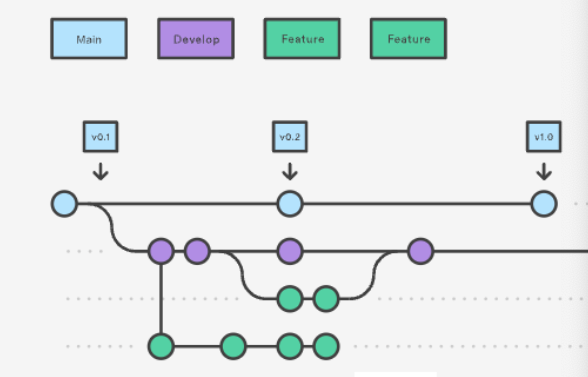
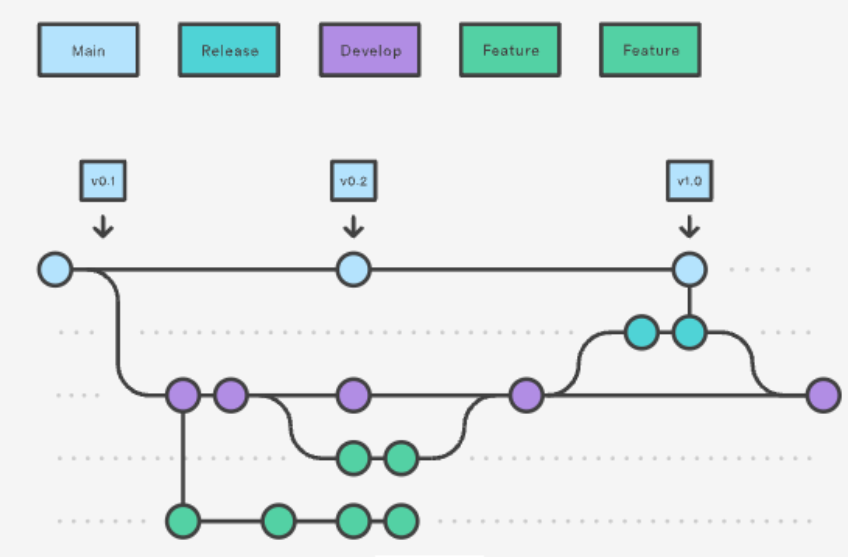
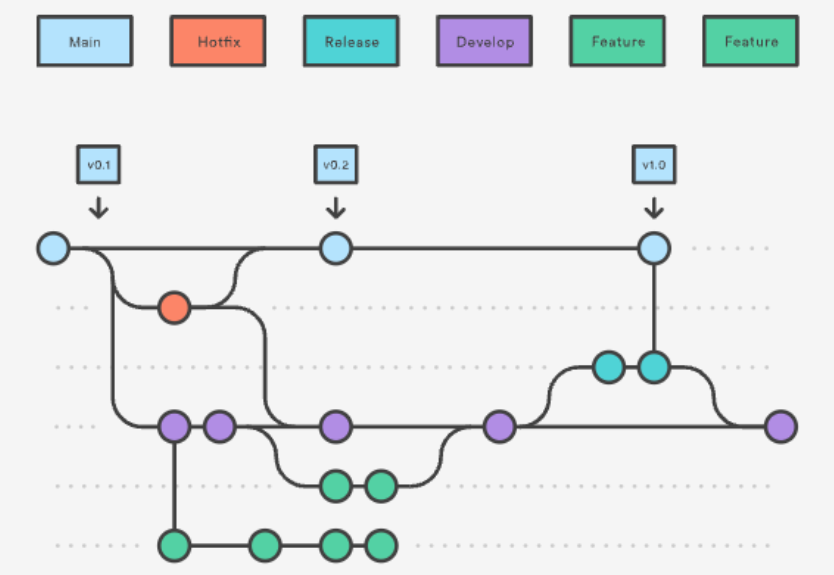
Master or Main: Contains the final implementation results, used by end-users.
-
Develop: Serves as an integration branch for features.
-
Feature: Each new feature has its own branch, derived from develop, merged back to develop upon completion.
- Release: Created from develop when ready for deployment. Bug fixes occur here before merging to main and develop.
- Hot Fix: For fixing bugs in production (from main), merged back to both main and develop.
Example Workflow
Let’s assume you have already installed and configured Git on your machine (this cheat sheet provides a simple and straightforward guide) and you want to add a new feature to your app, for example, Google Sign-In.
What should we do according to Git Flow? Below is the flow I normally use in my daily work. It’s the Git Flow methodology, slightly adapted to suit my development team’s workflow. Check out the steps below:
-
Create the main and develop branches if not already created:
git branch maingit branch develop -
Switch to develop:
git checkout develop -
Create a feature branch:
git checkout -b feature/sign-in-google -
Implement and commit changes:
git commit -am "Description of changes" -
Push your changes to the remote repository, and then create a Pull Request for the
developbranch. A Pull Request is essentially a request to review and integrate changes from one branch into another, commonly used for collaboration in Git projects (learn more). In this case, your feature changes will be merged into thedevelopbranch after approval.Note: When performing the integration between two branches, the Pull Request is essentially executing a merge. In simpler terms, it’s as if you switched to the target branch (in this case,
develop) and ran the following command:git merge feature/sign-in-google -
Update develop locally:
git checkout developgit pull -
Create a release branch from develop:
git checkout -b release/1.0.0 -
Push to the remote repository:
git push -
After the testing team approves the current release, repeat the Pull Request process, this time for both the master and develop branches, so your feature can be sent to production!
Conclusion
Git is an indispensable tool in software development, especially for those working in teams or aiming to maintain an organized code history. Mastering the basic concepts and commands, such as branch, commit, merge, and others, is the first step toward using Git efficiently.
Additionally, understanding workflows like Git Flow and integration with platforms like GitHub can significantly simplify project management.
I hope this guide has clarified key questions and served as a good starting point for you. Now it’s time to practice and explore this powerful version control system! 🚀